
WRepeatfind user guide
How to check your writing for repeated passages, from a single article to a whole book.
Your manuscript stays private. WRepeatfind works entirely on your own computer and never uses the internet. Nothing you check is uploaded or stored anywhere else, including text you paste in.
Try it in two minutes
- Get the program and the samples. Download WRepeatfind and WRepeatfind-Samples.zip, and unzip both.
- Start WRepeatfind by double-clicking
WRepeatfind.exe. - Drag the news article (News Article - City Library Hours.txt) into the window.
- Click Find Repeats. WRepeatfind finds two repeated passages: a sentence about the library director that appears in paragraphs 4 and 7, and a sentence about the cost that appears in paragraphs 8 and 10. Both are the kind of leftovers that happen when a story is reorganized.
- Double-click a repeat to see it highlighted in the report.
- Now try a book. Remove the article, drag in the three files from the Novel folder, keep Check the documents together as one work ticked, and click Find Repeats. A paragraph from chapter 1 turns up again in chapter 2.
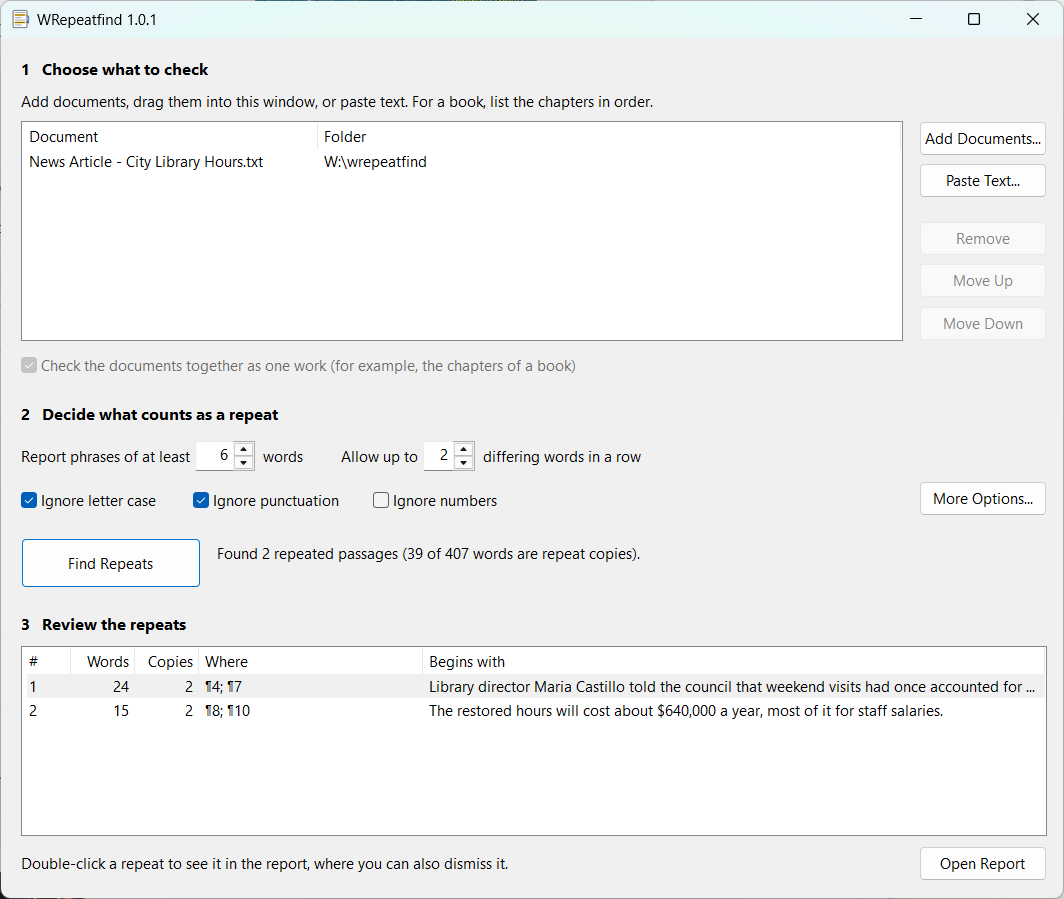
Step 1: Choose what to check
- Add Documents to choose one or more files, or drag files, or a folder of them, into the window.
- Paste Text to check text from anywhere, such as a web-based editor, an email, or a content management system. Give it a name, paste (Ctrl+V) or click Paste from Clipboard, and click Add. Pasting again under the same name replaces the earlier text, which is handy when you check a draft repeatedly.
- Remove, Move Up, and Move Down arrange the list. Double-click a document to open it.
WRepeatfind reads Word documents (.docx and .doc), plain text, web pages, and PDFs that contain text. The list is remembered between sessions.
Checking a book
For a book written as separate chapter files, add the chapters in order (dropped files and folders are sorted naturally, so "Chapter 2" comes before "Chapter 10") and keep Check the documents together as one work ticked. WRepeatfind then finds repeats between chapters as well as within them. Untick it to check each document on its own, for example a set of unrelated articles.
Step 2: Decide what counts as a repeat
- Report phrases of at least ___ words (default 6). Shorter settings find more, including common phrases; longer settings find only substantial repeats. Six works well for most prose. Try 10 or more to find only duplicated sentences and paragraphs, or 4 to hunt for pet phrases.
- Allow up to ___ differing words in a row (default 2). Lets a repeat survive small edits: a changed, added, or dropped word. Use 0 for exact repeats only.
- Ignore letter case and Ignore punctuation (both on by default) keep a repeat from being missed because one copy starts a sentence or has a different comma. Ignore numbers also matches passages that differ only in figures or dates.
Step 3: Find and review the repeats
Click Find Repeats. Even a long book takes only a moment. The list shows each repeated passage:
- #: the repeat's number, in the order it first appears
- Words: the length of the longest copy
- Copies: how many times it appears
- Where: each copy's location, as a paragraph number (¶), with the document name when you check several documents
- Begins with: the start of the passage
Double-click a repeat (or select it and press Enter) to open the report at that passage. Open Report opens it at the top; WRepeatfind also opens it automatically when repeats are found.
A "paragraph" is counted each time the text starts a new line. In a Word document that's each paragraph; in a plain-text file with a line break at the end of every line, it's each line.
Using the report
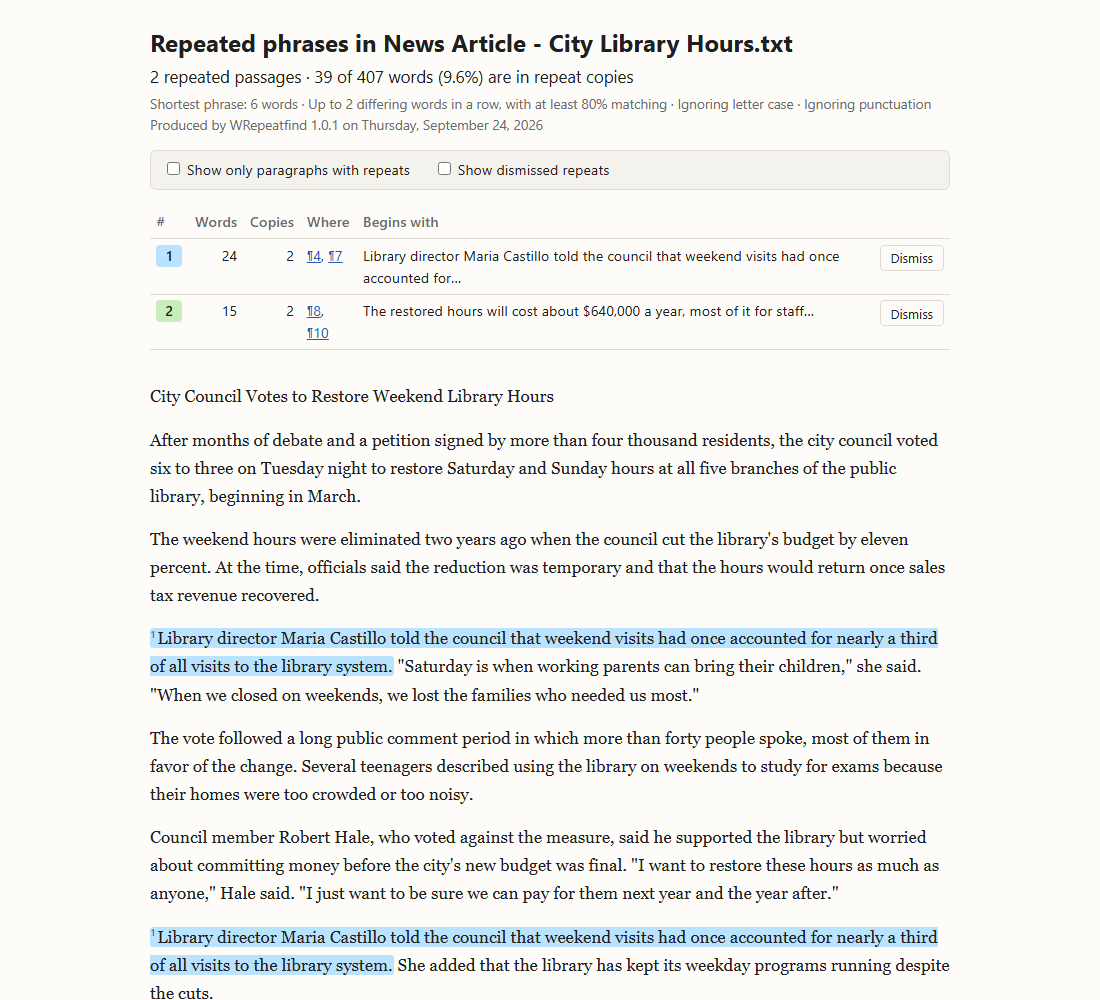
- The summary table lists every repeat. Click a location (¶) to jump to that copy, or a repeat's number to jump to its first copy.
- In the text, each repeat is highlighted in its own color, with its number at the start of each copy. Click a highlight to jump to the next copy of the same passage.
- Words in italics with a dotted underline differ between the copies.
- Dismiss a repeat that's intentional, such as a refrain, a deliberate callback, or a repeated heading. Its highlight disappears and its row moves out of the way. Dismissals are remembered by your browser for this document, so they stay dismissed when you edit and check again, as long as the passage's words haven't changed. Tick Show dismissed repeats to see them again, and click Restore to undo.
- Show only paragraphs with repeats hides the rest of the text.
Fix repeats in your own document (WRepeatfind never changes it), then check again. See tips for writers and editors.
More Options
- At least ___% of a phrase's words must match when it has differing words (default 80). Keeps unrelated text from being joined into a repeat.
- Ignore punctuation only at the start and end of words: a gentler alternative to ignoring all punctuation.
- Skip words that contain digits or symbols, and skip words longer than ___ characters: leave out web addresses, file names, and other non-words.
- Basic characters only: discards words with accented or special characters. Rarely needed.
- Language: tells WRepeatfind which characters are letters and punctuation.
- Save reports in this folder: by default
Documents\WRepeatfind Reports. - Open the report in my browser when repeats are found: on by default.
- Restore All Defaults resets every setting.
Running WRepeatfind from the command line
WRepeatfind can run without its window, for batch jobs:
WRepeatfind.exe /report "report.html" [/summary "summary.txt"] [/separate] [/phrase N] [/tolerance N] documents.../report: where to write the report (required)/summary: also write a tab-separated list of the repeats/separate: check each document on its own instead of as one work/phrase,/tolerance: the shortest phrase and the differing words allowed
Other settings come from the window's saved settings.
Where WRepeatfind keeps things
- Reports: in the report folder, named after the document (for example,
Repeats in My Article.docx.html). Checking the same document again replaces its report. - Pasted text: saved as text files in
%LOCALAPPDATA%\WRepeatfind\Pasted Texton your computer, so the report can show it. Delete them whenever you like. - Settings and the document list: in your Windows user profile (the registry, under
HKEY_CURRENT_USER\Software\WRepeatfind). - Dismissed repeats: in your web browser's storage for the report files.
To uninstall WRepeatfind, delete WRepeatfind.exe, and optionally the report and pasted-text folders.