
For writers and editors · Windows
Find the phrases your writing repeats
Moved a paragraph and forgot to delete the original? Reused a sentence from an earlier chapter? WRepeatfind reads your article, thesis, or whole book and shows you every passage that appears more than once.
Your documents never leave your computer.
No installation, no account, no internet needed. Download details
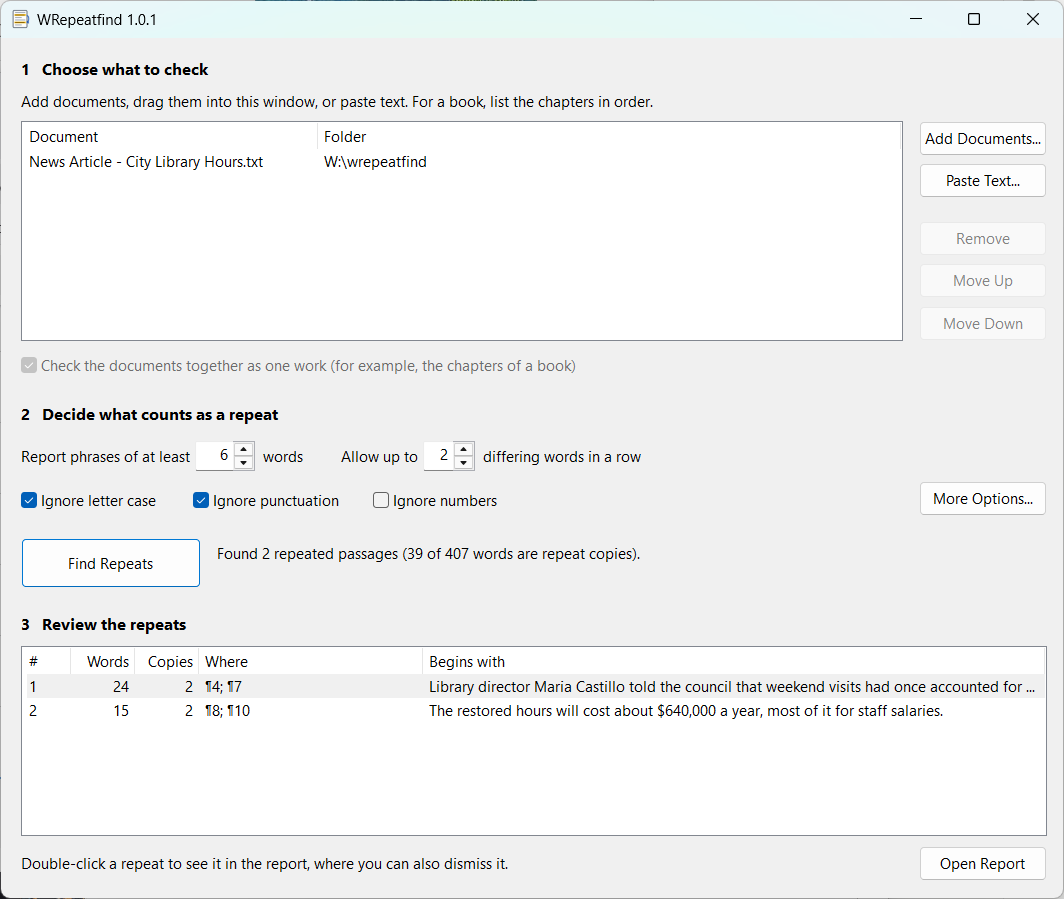
Repetition sneaks in
When you're writing fast, revising hard, or assembling a long document from many drafts, it's easy to leave a sentence in two places. Readers notice; spell checkers and grammar checkers don't. WRepeatfind does.
Finds real repeats
Not single words, but whole phrases, sentences, and paragraphs: six words or more by default, so ordinary phrases don't clutter the results.
Sees through edits
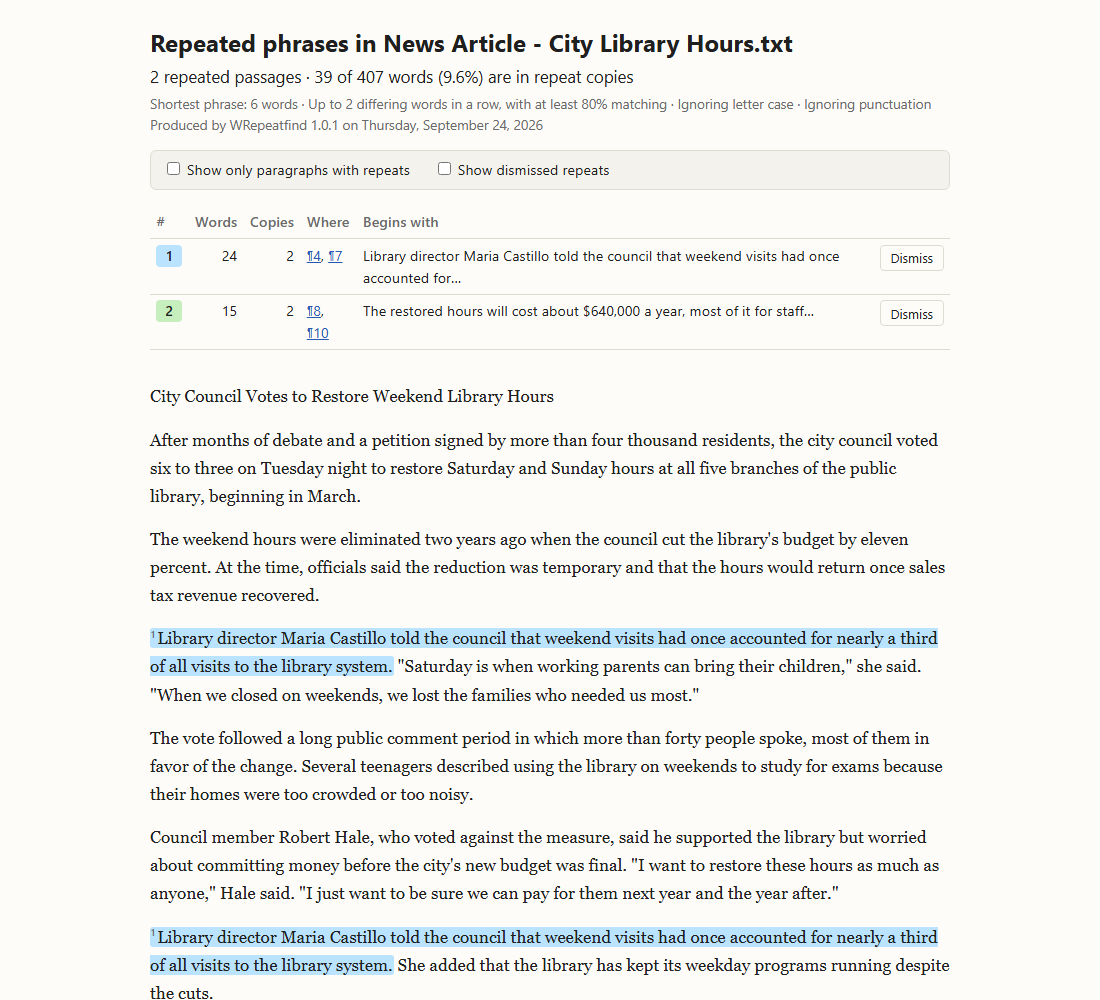
A repeated passage is found even if you changed a word or two in one copy. The differing words are shown in italics.
Checks whole books
Add your chapters in order and WRepeatfind checks them as one work, catching the passage in chapter 2 that turns up again in chapter 9.
Your documents never leave your computer
WCopyfind and WRepeatfind read and compare your files right where they are, on your own PC. Nothing is uploaded, nothing is stored in the cloud, and no one else's computer ever sees your text. There's no account to create and nothing to sign in to, and the programs work without an internet connection.
That makes them safe for the documents that matter most: student papers, unpublished manuscripts, theses, legal and business files, and anything confidential. Many online plagiarism checkers keep a copy of every paper submitted to them. These programs keep nothing, because they never receive anything.
The one exception is by your choice: if you add an internet shortcut to WCopyfind, it downloads that web page to compare it. It never sends your documents anywhere. Read the full privacy statement.
Three steps
- Choose what to check. Add a document, drag in a folder of chapters, or paste text straight from your web editor or email.
- Decide what counts as a repeat. The defaults (six words or more, allowing two differing words) suit most writing.
- Find Repeats. Review the list, then open the report to see each repeat in context and fix or dismiss it.
Read the guide → or download sample documents to try it in a minute.
Made for
- Journalists and editors rushing a story that was reorganized on deadline
- Authors checking a book manuscript chapter by chapter, and across chapters
- Students and researchers polishing a thesis, dissertation, or grant proposal
- Technical and business writers assembling reports and manuals from many pieces
- Bloggers and content writers who reuse material across posts
Good to know
- Reads Word (.docx and .doc), plain text, web pages, and PDFs that contain text, or text you paste in
- Works with any language that puts spaces between words
- Remembers the repeats you dismiss, even after you edit and check again
- Free for any use, and open source under the GNU GPL
- Runs on 64-bit Windows 10 and 11; Mac users can try Wine
Comparing different documents instead?
WRepeatfind's older sibling, WCopyfind, uses the same engine to compare many documents with each other, for example to detect plagiarism between student papers.